Indoor training no longer rhymes with boredom! Thanks to the apps and indoor bike trainer connected, each session becomes an adventure, a race or a trip. For these efforts to count in your overall progress, synchronization of data is essential. Here's how to connect Kinomap, the video immersion app, with Strava, the social network of athletes.

Kinomap: Immersion through video
Kinomap is a French platform specializing in geolocalized and interactive videos. Its main concept is to allow you to "roll" on real routes filmed all over the world.
- Principle: You choose a video of a stage of the Tour de France or a mythical climb.
- Interaction: Your indoor bike trainer (or treadmill) is synchronized with the video. When the bike on the screen climbs a 10% slope, your HT increases the resistance in an equivalent way.
- Advantage: Kinomap has one of the largest participatory and official video libraries, offering a very realistic alternative to 3D virtual worlds.
Strava: The athletes' social network
Strava is much more than just an activity recording application; it is the social network of reference for cyclists, runners and swimmers.
- Main function: Record, analyze and share sports activities.
- Segments: The heart of Strava lies in the "Segments", parts of the road (or paths) where users face each other virtually for the best time (called KOM - King of the Mountain, or QOM Queen of the Mountain).
- Utility: By synchronizing your Kinomap sessions with Strava, you make sure that all the kilometres you travel indoors count in your challenges, your annual goals, and with your community.
Synchronize Strava with Kinomap
The connection is done directly from the settings of your Kinomap account and only needs to be done once.
Step 1: Access Kinomap Settings
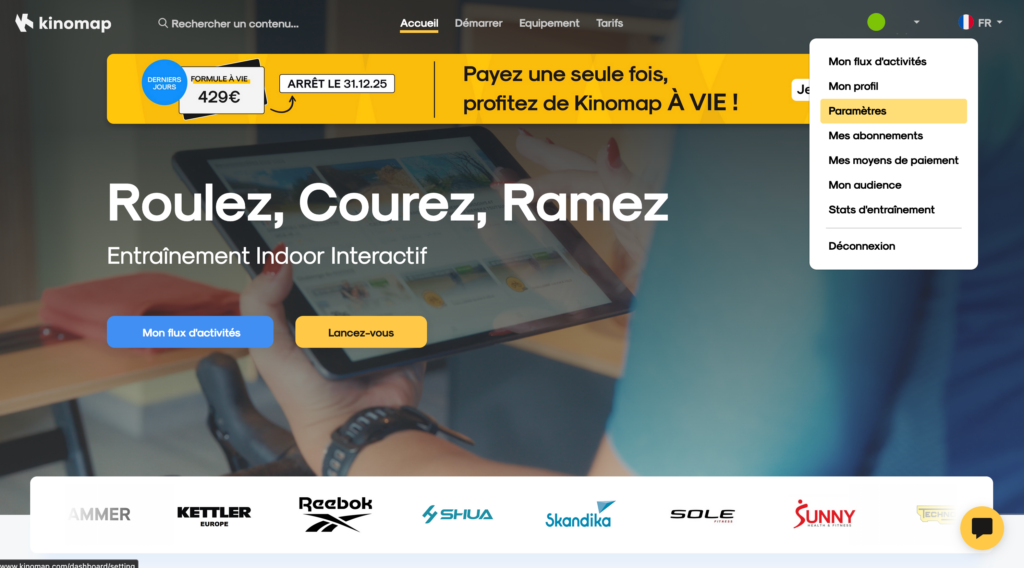
- Open the app Kinomap on your device (smartphone or tablet) or sign in to the website of Kinomap.
- Go to the section "Settings" your account.
Step 2: Navigate to Third Party Services (Share)
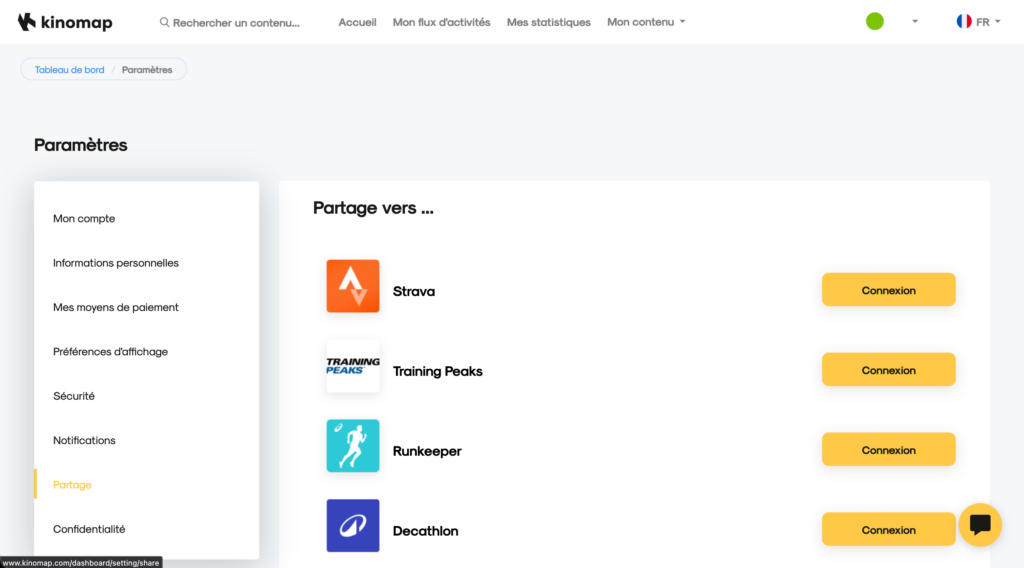
- In the Settings menu, look for the section "Share".
Step 3: Allow connection to Strava
- Locate the icon or name of Strava in the list of services available.
- Click on the button "Login.
- You will be redirected to the Strava login page.
Step 4: Confirm Authorization
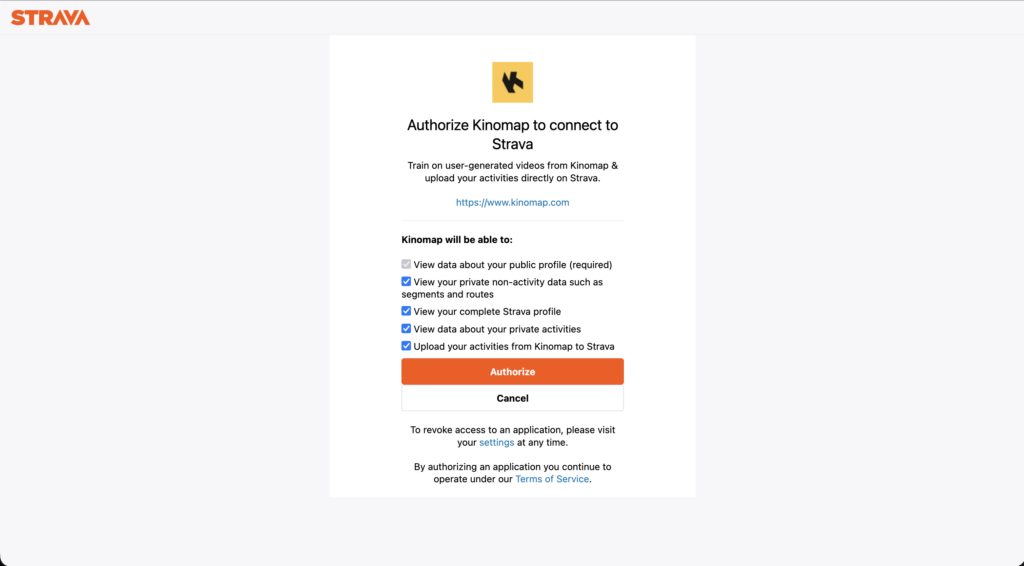
- Enter your IDs Strava (email and password).
- Strava will then ask you toallow Kinomap to publish your activities on your Strava profile. Read permissions carefully, then click on "Authorize" or Connect..
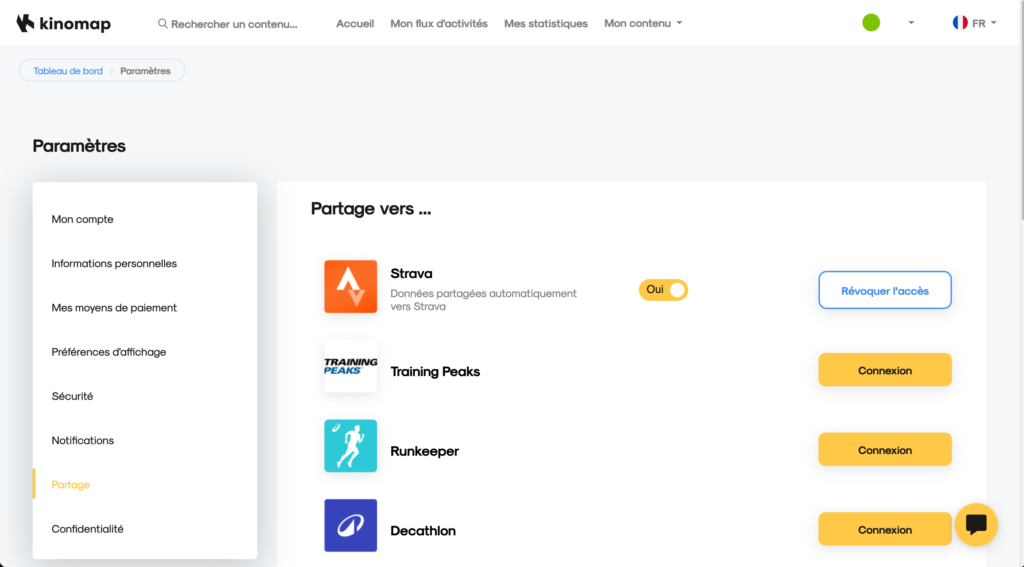
Once the authorization is given, you will be automatically redirected to Kinomap. You will see the icon of Strava appear in color or with the mention "Connect".
What happens next: Now, each new session that you will complete and validate in the Kinomap application will automatically transferred to your Strava account. You will find maps (if available), power data, speed data, duration and KMs travelled, all without needing to open Strava.